Introduction
Tracking employee timesheets manually every week is time consuming, error prone, and difficult to scale especially for growing teams. Managers often struggle with incomplete submissions, delayed follow ups, and inconsistent reporting formats across departments.
This workflow automates the entire weekly timesheet reporting process using Salesforce, n8n, OpenAI, and Gmail. It automatically retrieves employee timesheets, separates submitted and pending records, summarizes weekly work using AI, and sends a clean, structured email report to managers. By eliminating manual verification and repetitive follow-ups, this automation ensures accurate visibility, faster reporting, and consistent weekly insights into employee productivity.
Business Challenge
In many organizations, timesheets are critical for tracking productivity, attendance, billable hours, and project progress. However, manual monitoring introduces several challenges. Managers spend hours checking which employees submitted their timesheets, HR teams repeatedly follow up with pending employees, and weekly summaries are often prepared manually and remain inconsistent. Additionally, project updates lack standardized reporting formats, and important insights from daily work often get buried within raw time entries.
Without automation, this situation leads to delayed reporting, compliance risks, and reduced operational efficiency. To overcome these challenges, businesses need an automated and intelligent system that not only tracks timesheet submissions but also provides clear, AI powered activity summaries for better visibility and faster decision-making.
Requirement
The requirement was to build a fully automated weekly workflow that fetches timesheet data directly from Salesforce, automatically identifies submitted and non-submitted employees, summarizes weekly work using OpenAI in a clean 4 point format, tracks billable, non-billable, and absence hours, generates a professional manager-ready report, and sends the final report automatically via Gmail every week in tabular format.
This system is designed to work with the Digital Biz Tech – Simple Timesheet App installed in Salesforce.
Steps to Achieve the Requirement
1. Configure n8n and Salesforce Integration
2.Trigger Weekly Workflow Execution
3. Fetch Weekly Timesheets from Salesforce
4.Processing Path A — Submitted Timesheets
4.1. Filter Submitted Timesheets
4.2. Loop Through Each Employee
4.3. Retrieve Line Items
4.4. Convert Line Items to Structured HTML
4.5. OpenAI Weekly Summary Generation
4.6. Fetch Employee Details and Merge with Timesheet Details
4.7. Merge Employee + AI Summary
4.8. Prepare Submitted Report Section
5.Processing Path B — Not Submitted Timesheets
5.1. Filter Non-Submitted Timesheets
5.2. Fetch Employee Contact Information
5.3. Merge Pending Timesheet + Employee Details
5.4. Generate Pending Submission List
6.Final Assembly & Report Delivery
6.1. Append Submitted and Not-Submitted Reports
6.2. Combine Submitted and Pending Reports
6.3. Send Final Consolidated Report to Managers via Gmail
7.Setup Checklist and Test the Workflow
1. Configure n8n and Salesforce Integration
Install the DBT Timesheet App from Salesforce AppExchange to start logging timesheets, and configure Salesforce OAuth in n8n to securely connect and fetch the data automatically.
1.1. To Install and Access n8n
1.1.1. You can use n8n in different ways:
Self-hosted: Install on your local machine or server.
Cloud version: Sign up for n8n Cloud to get started quickly.
1.1.2. Refer to the installation document (https://docs.n8n.io/) to install Node.js and setup n8n.
1.1.3. Run npm, install n8n -g to install n8n globally.
1.1.4. Start n8n by running the n8n command in your terminal.
1.2. Install DBT Simple Timesheet App on AppExchange:
1.2.1. Install the Digital Biz Tech – Simple Timesheet managed package from AppExchange.
https://appexchange.salesforce.com/appxListingDetail?listingId=a077704c-2e99-4653-8bde-d32e1fafd8c6
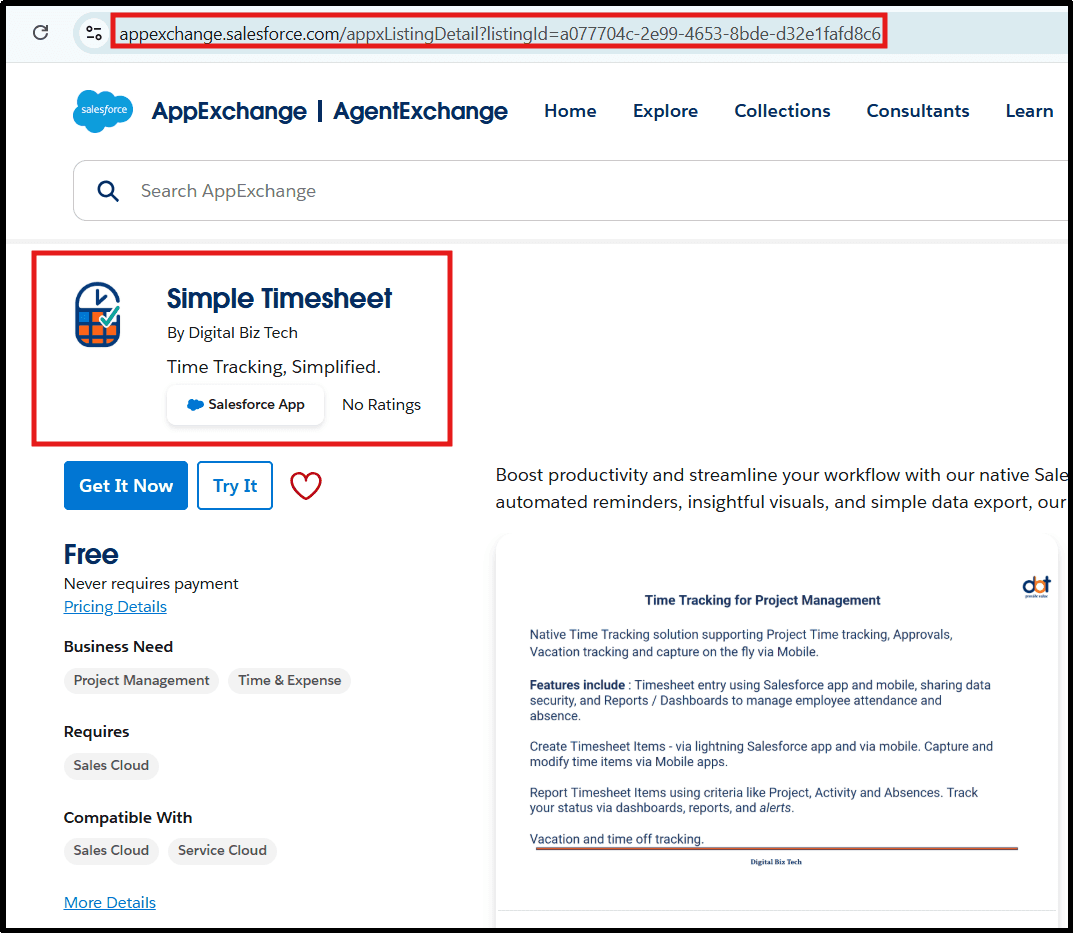
1.2.2. Ensure timesheet objects (dbt__Timesheet__c, dbtTimesheet_Line_Item__c, dbt__Employeec) are available and users can submit timesheets.
1.3. Configure Salesforce credentials in n8n
1.3.1. In n8n, select the Environment Type for your connection and choose either Production or Sandbox based on your Salesforce org.
1.3.2. Enter your Salesforce Username in n8n for authentication.
1.3.3. Log in to your Salesforce organization using your credentials.
1.3.4. From Salesforce Setup, enter App Manager in the Quick Find box and select App Manager.
1.3.5. On the App Manager page, select New Connected App.
1.3.6. Enter the required basic information for your connected app including the App Name and Contact Email address.
1.3.7. Check the box to Enable OAuth Settings in the connected app configuration.
1.3.8.Callback URL, enter https://n8n.digitalbiz.tech/rest/oauth2-credential/callback.
1.3.9. Add the OAuth scopes Full access (full) and Perform requests at any time (refresh_token, offline_access).
1.3.10. Ensure that Require Proof Key for Code Exchange (PKCE) Extension for Supported Authorization Flows, Require Secret for Web Server Flow, and Require Secret for Refresh Token Flow are all unchecked.
1.3.11. Select Save and then Continue to complete the connected app creation. The Manage Connected Apps page will open automatically.
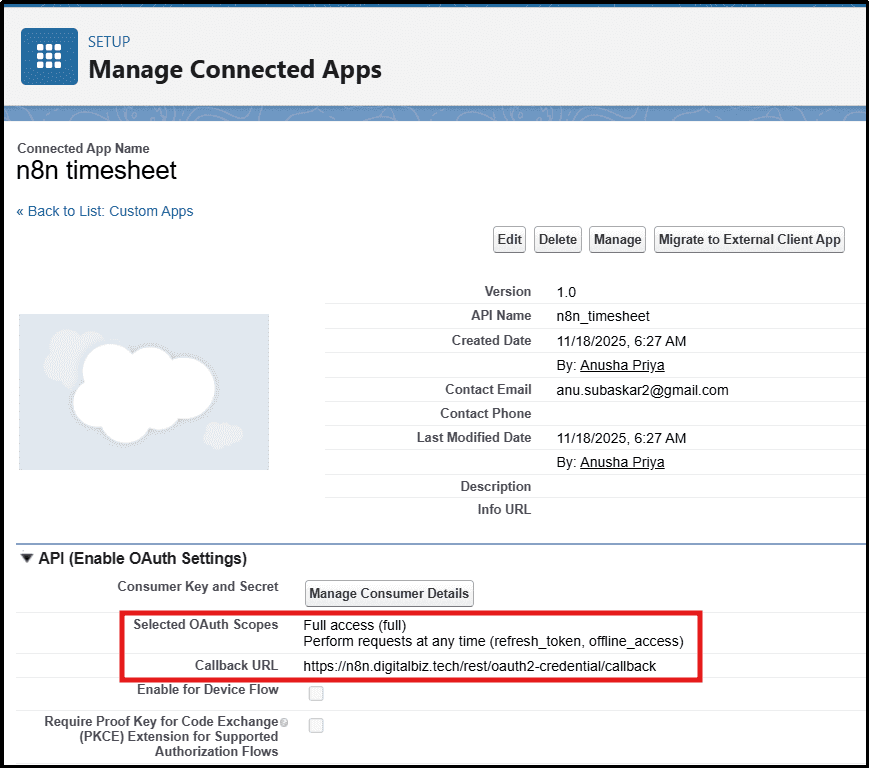
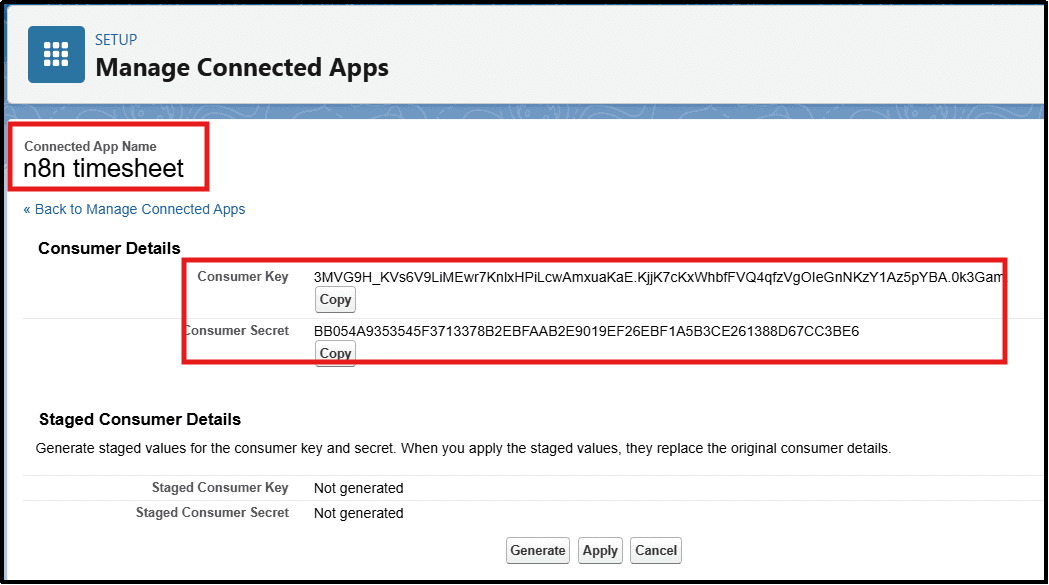
1.3.12. In the API section, select Manage Consumer Details.
1.3.13. Copy the Consumer Key and paste it into your n8n Salesforce credential as the Client ID.
1.3.14. Copy the Consumer Secret and paste it into your n8n Salesforce credential as the Client Secret to complete the OAuth configuration.
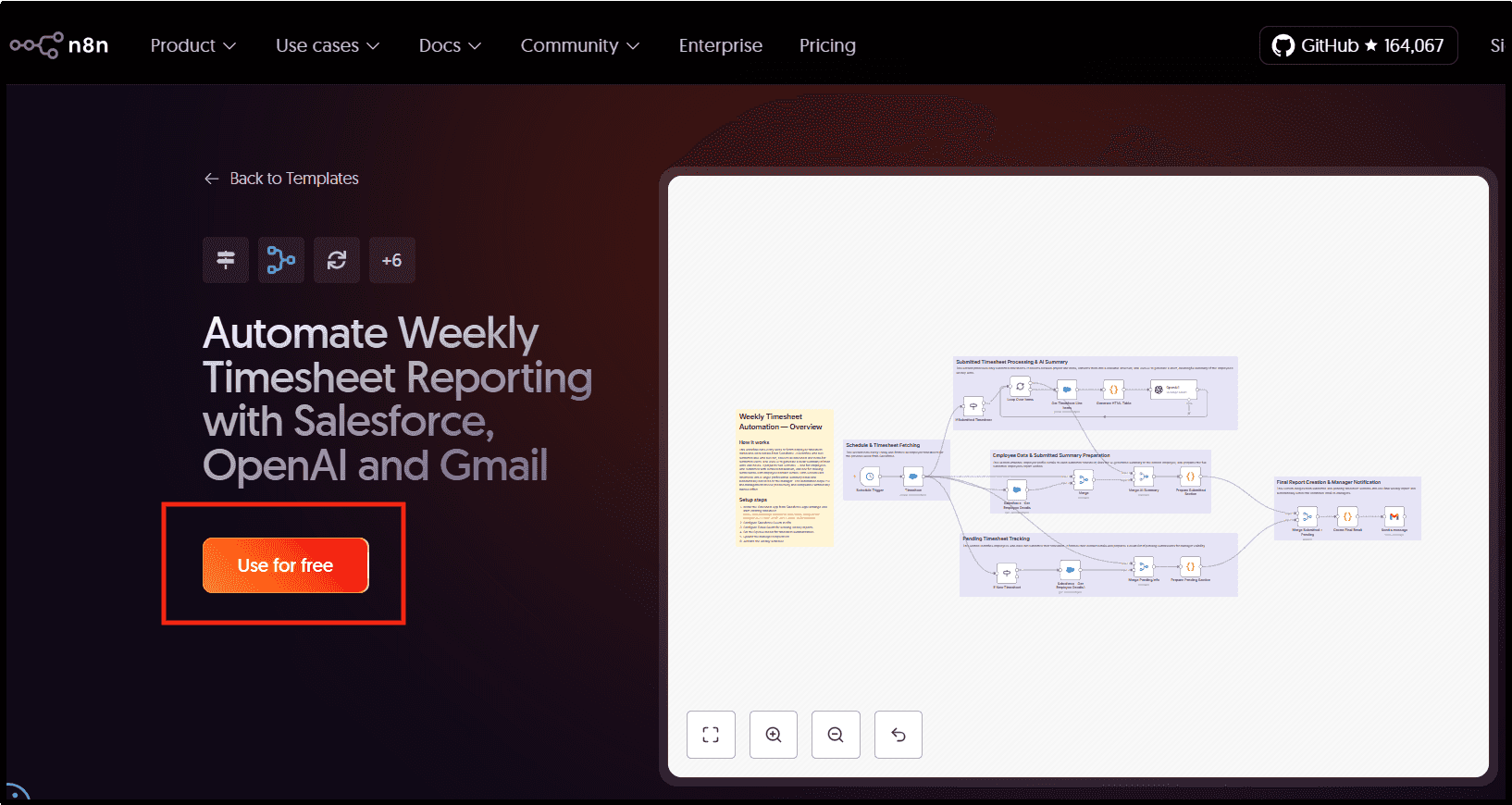
1.3.15. Steps to Use This Free n8n Workflow Template
1.3.15.1. Open the workflow link:https://n8n.io/workflows/11191-automate-weekly-timesheet-reporting-with-salesforce-openai-and-gmail/
1.3.15.2. Click the “Use for free” button on the template page.
1.3.15.3. Select “Copy Template to Clipboard (JSON)” to copy the workflow configuration.
1.3.15.4. Open your n8n editor (canvas).
1.3.15.5. Paste the copied JSON directly into the n8n canvas to import the workflow.
1.3.15.6. Configure your Salesforce, OpenAI, and Gmail credentials as required.
1.3.15.7. Activate the workflow to start automating weekly timesheet reports.
2. Trigger Weekly Workflow Execution
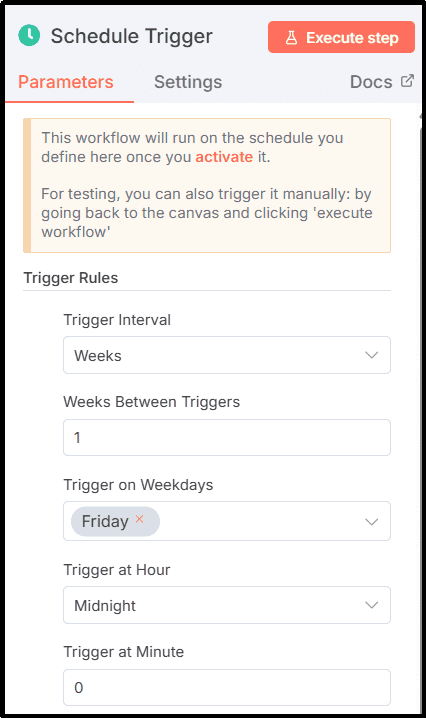
2.1. This workflow runs automatically based on the schedule defined in this trigger once the workflow is activated.
2.1.2. For testing purposes, the workflow can also be executed manually by clicking the Execute Workflow button in the canvas.
2.1.3. The trigger interval is set to Weeks.
2.1.4. The workflow is configured to run once every 1 week.
2.1.5. The workflow is scheduled to trigger only on Weekdays.
2.1.6. The selected triggering day is Friday.
2.1.7. The workflow is set to trigger at Midnight (12:00 AM).
3. Fetch Weekly Timesheets from Salesforce
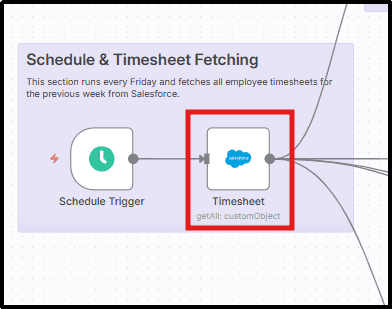
3.1. This node automatically pulls all employee timesheets for the previous week directly from Salesforce. It ensures only the required fields and accurate weekly data are fetched for reporting.
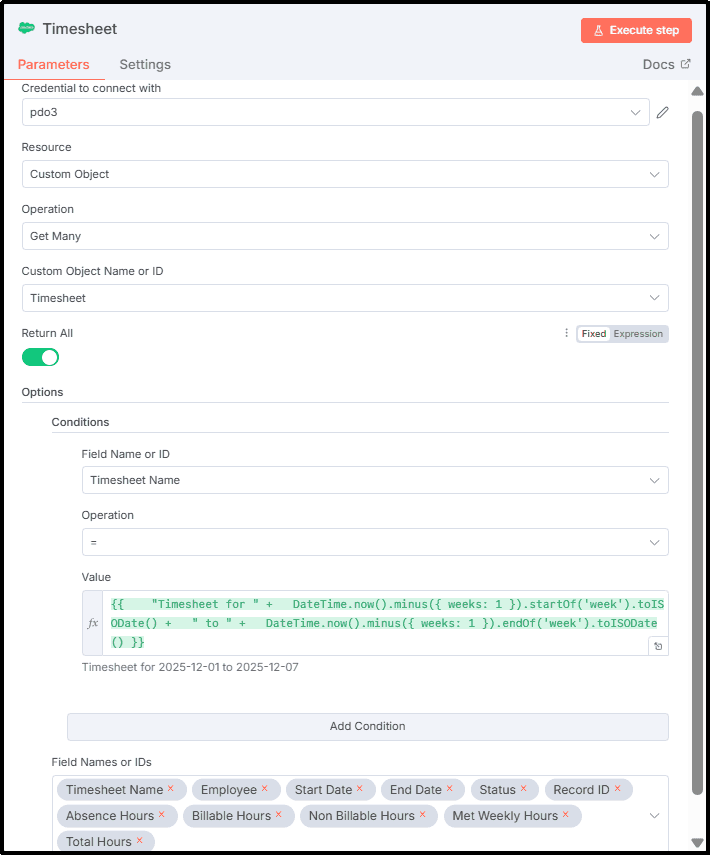
3.1.1.This node connects to Salesforce using the pdo3 credential.
3.1.2. The selected resource type is Custom Object.
3.1.3. The operation used is Get Many to fetch multiple records at once.
3.1.4. The Custom Object Name or ID is set to Timesheet.
3.1.5. The Return All option is enabled to ensure all matching records are retrieved.
3.1.6. A condition is applied on the Timesheet Name field.
3.1.7. The operation used in the condition is equals (=).
3.1.8. The value dynamically filters records for the previous week using this expression:
({ weeks: 1 }).startOf('week').toISODate() + " to " + DateTime.now().minus({ weeks: 1 }).endOf('week').toISODate()
3.1.9. The following fields are selected to be returned from Salesforce: Timesheet Name, Employee, Start Date, End Date, Status, Record ID, Absence Hours, Billable Hours, Non Billable Hours, Met Weekly Hours, and Total Hours.
4. Processing Path A — Submitted Timesheets
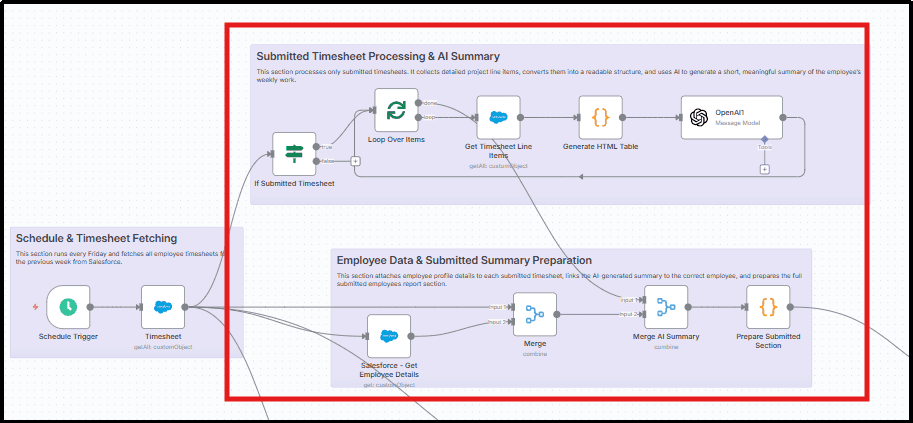
4.1 Filter Submitted Timesheets
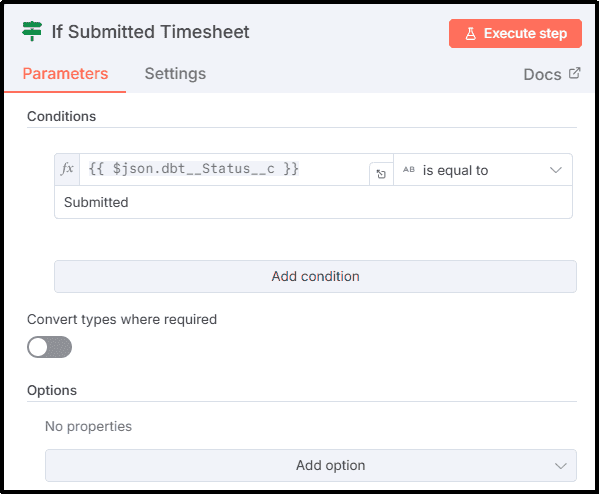
Routes all records where status is equal to Submitted.
4.1.1 Reads the dbt__Status__c field from each timesheet record.
4.1.2 Allows only records where the status is equal to Submitted.
4.2 Loop Through Each Employee
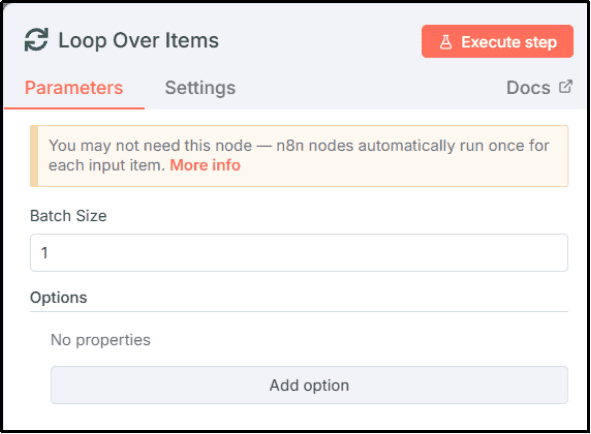
Ensures each employee is processed independently.
4.2.1 Processes one employee record at a time using Batch Size = 1.
4.2.2 Ensures all employees are handled separately without mixing data.
4.3 Retrieve Line Items
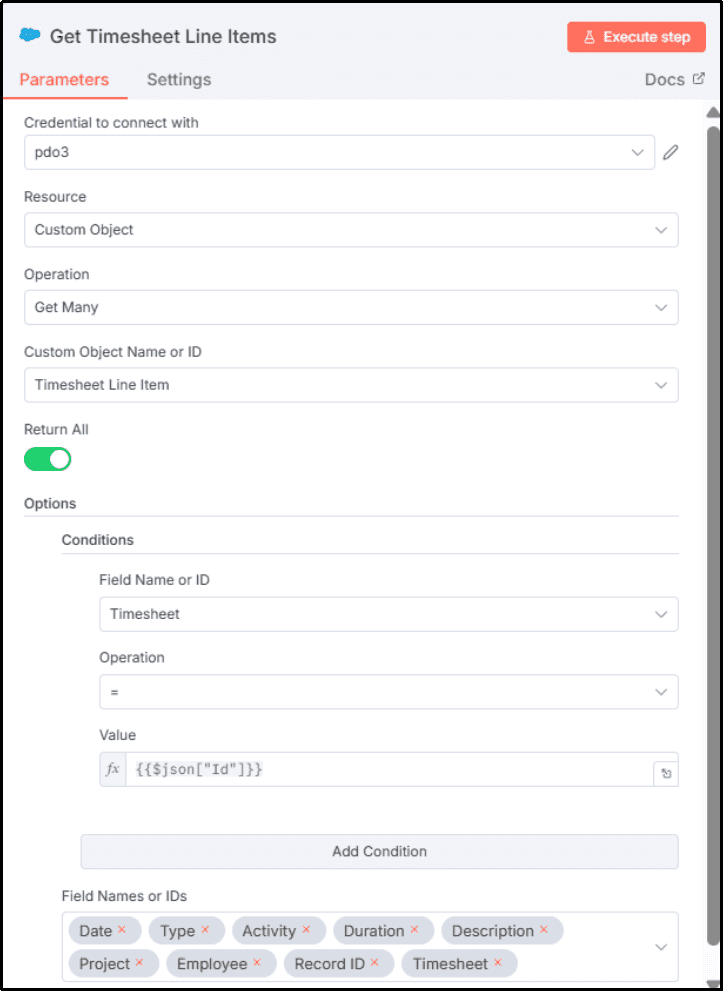
This node fetches all project-level line items linked to each employee’s submitted timesheet. It ensures that every task, activity, duration, and work description is captured accurately for AI analysis and reporting.
4.3.1. This node connects to Salesforce using the pdo3 credential.
4.3.2. The selected resource type is set to Custom Object.
4.3.3. The operation used is Get Many to fetch multiple line item records at once.
4.3.4. The Custom Object Name or ID is set to Timesheet Line Item.
4.3.5. The Return All option is enabled to retrieve all related line items without pagination limits.
4.3.6. A condition is applied on the Timesheet field to filter records.
4.3.7. The condition operation used is equals (=).
4.3.8. The value dynamically references the parent Timesheet record using {{$json["Id"]}} so only the current employee’s activities are fetched.
4.4 Convert Line Items to Structured HTML
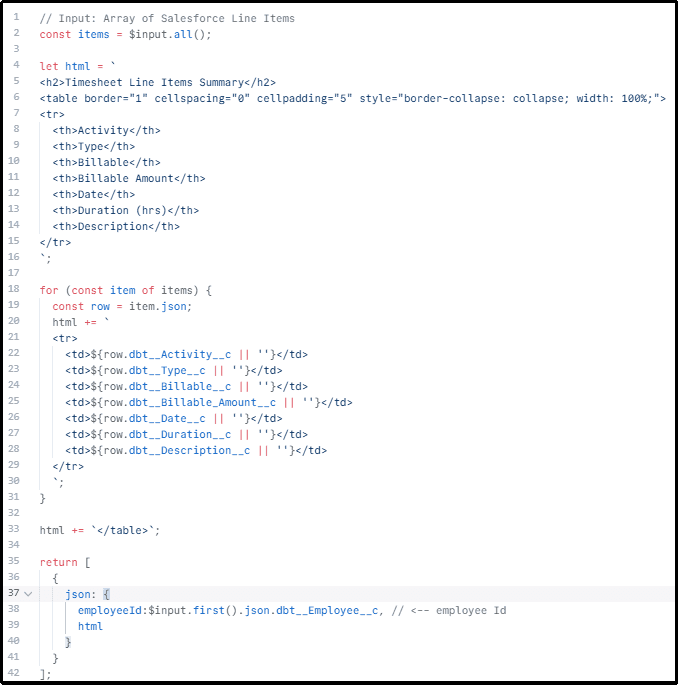
This node converts all retrieved timesheet line items into a clean, structured HTML format so that the AI can accurately analyze the employee’s weekly activities. It ensures the raw Salesforce records are transformed into a readable table layout for consistent AI processing.
4.4.1. The node runs in Run Once for All Items mode to process all line items together as a single dataset.
4.4.2. The Language is set to JavaScript to allow custom data processing and formatting.
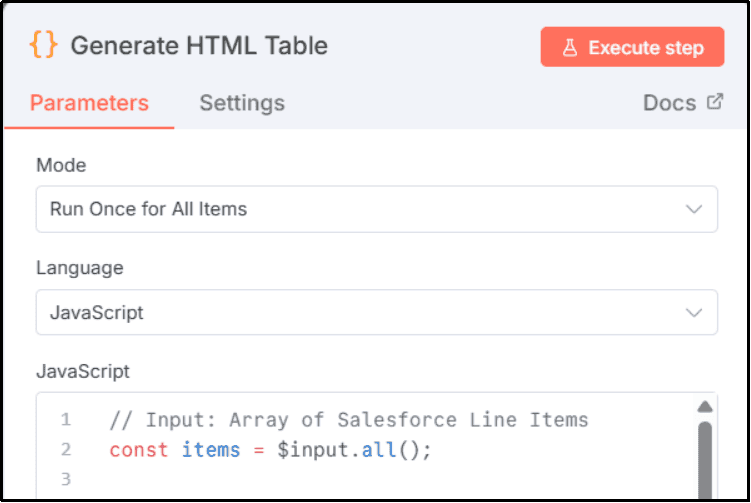
4.4.3. All incoming Salesforce line items are collected using $input.all() into a single array.
4.4.4. An HTML table structure is initialized with headers for Activity, Type, Billable, Billable Amount, Date, Duration, and Description.
4.4.5. Each line item is looped through and dynamically inserted into the HTML table row-by-row.
4.4.6. Empty values are handled safely using default blank values to avoid formatting errors.
4.4.7. The final HTML table is closed properly to ensure valid formatting.
4.4.8. The employee ID is extracted from the first line item using dbt__Employee__c.
4.4.9. The output returns a single JSON object containing both the employee ID and the formatted HTML for AI analysis.
4.5 OpenAI Weekly Summary Generation
This node sends the structured HTML timesheet data to OpenAI and generates a clear, concise 4-point weekly activity summary for each employee. It ensures only meaningful project work is summarized while excluding irrelevant details.
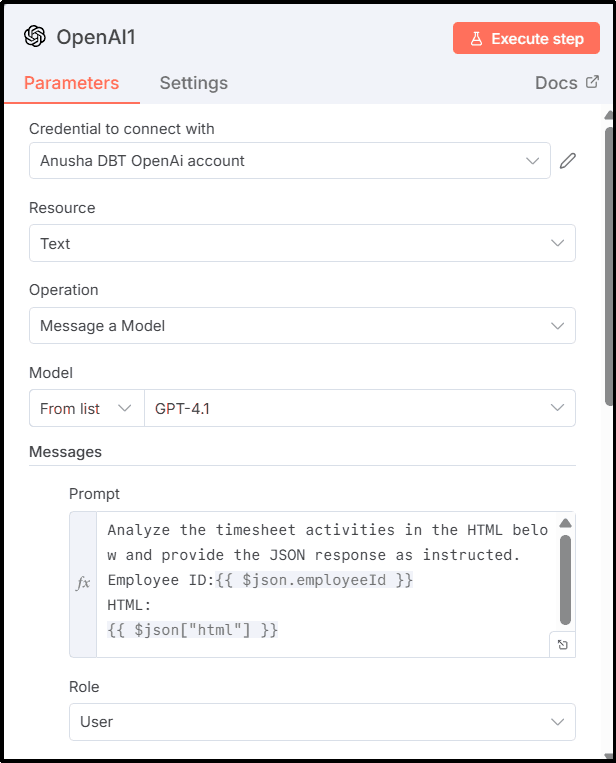
4.5.1. This node connects to OpenAI using the Anusha DBT OpenAI account credential.
4.5.2. The selected Resource is set to Text to enable text-based AI processing.
4.5.3. The Operation is set to “Message a Model” to send prompts directly to the AI model.
4.5.4. The Model is selected as GPT-4.1 from the available model list for accurate summarization.
4.5.5. The employee ID and structured HTML content are dynamically passed into the prompt using {{ $json.employeeId }} and {{ $json["html"] }}.
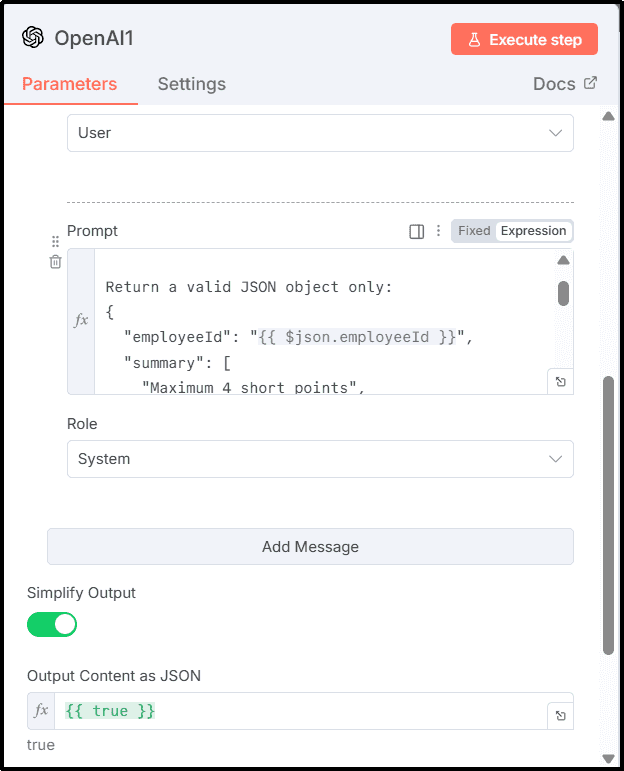
4.5.6. The system prompt clearly instructs the AI to analyze only timesheet activities and ignore unrelated information.
4.5.7. The AI is strictly instructed to return only a valid JSON object with no extra text or formatting.
4.5.8. The summary is restricted to a maximum of 4 short points for easy weekly reporting.
4.5.9. Rules are applied to exclude hours, dates, billable details, metadata, and meetings-only work.
4.5.10. The final output contains a clean JSON response with employeeId and a 4-point activity summary ready for merging with employee records.
4.6 Fetch Employee Details and Merge with Timesheet Details
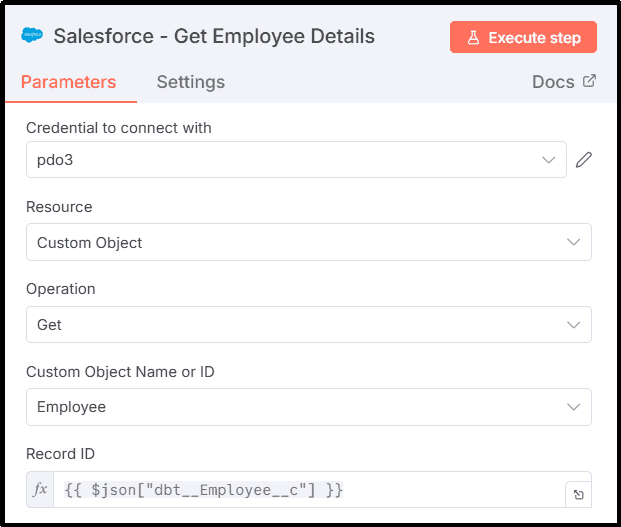
4.6.1 This node retrieves the complete employee master data for each submitted timesheet. It ensures that the final report contains accurate personal identification details such as name and official email along with the internal employee ID.
4.6.1.1. This node connects to Salesforce using the pdo3 credential.
4.6.1.2. The selected resource type is set to Custom Object.
4.6.1.3. The operation used is Get to retrieve a single employee record.
4.6.1.4. The Custom Object Name or ID is set to Employee.
4.6.1.5. The Record ID field is dynamically mapped using {{ $json["dbt__Employee__c"] }} from the submitted timesheet.
4.6.1.6. This ensures the correct employee profile is fetched for each timesheet entry.
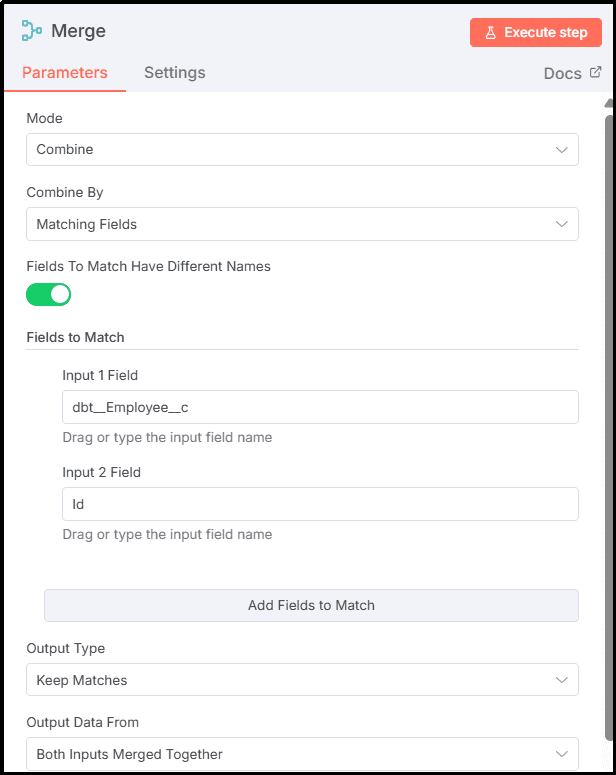
4.6.2. This node merges the employee master data with the corresponding timesheet record to ensure accurate employee mapping in the workflow. It ensures each timesheet is correctly linked to the right employee before further processing.
4.6.2.1. The node runs in Combine mode to merge data from two different inputs.
4.6.2.2. The merge is performed using Matching Fields as the combine condition.
4.6.2.3. Since both the inputs use different field names, Fields To Match Have Different Names is enabled.
4.6.2.4. The first matching field is set as dbt__Employee__c from the timesheet data.
4.6.2.5. The second matching field is set as Id from the employee object.
4.6.2.6. The Output Type is set to Keep Matches to ensure only valid matched employees are retained.
4.6.2.7. The Output Data is selected as Both Inputs Merged Together to combine employee and timesheet data into a single record.
4.7 Merge Employee + AI Summary
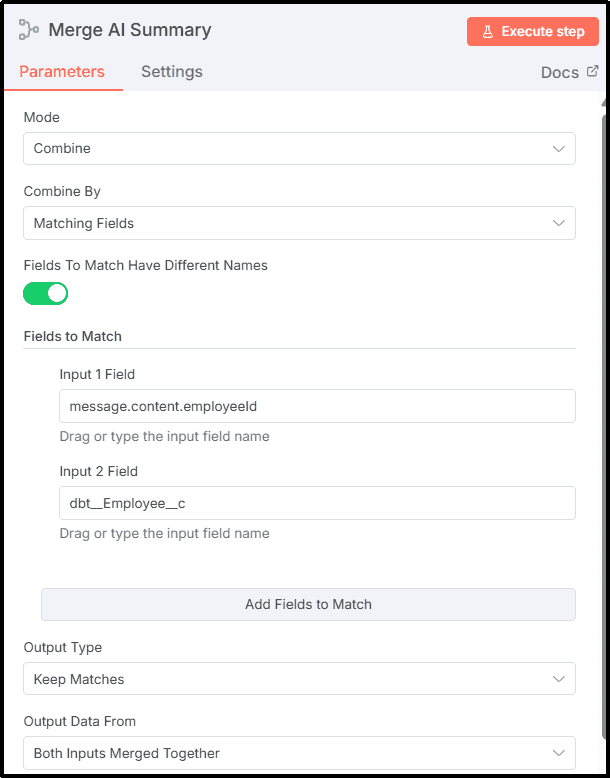
This node merges the employee master data with the AI-generated weekly work summary to form one complete, structured employee report object. It ensures that each summary is correctly mapped to the corresponding employee using a common matching key.
4.7.1. This node runs in Combine mode to merge two separate data streams.
4.7.2. The Combine By option is set to Matching Fields.
4.7.3. The option Fields To Match Have Different Names is enabled to allow cross-field mapping.
4.7.4. The Input 1 Field is set to message.content.employeeId, which comes from the AI summary output.
4.7.5. The Input 2 Field is set to dbt__Employee__c, which comes from the Salesforce employee record.
4.7.6. The Output Type is configured as Keep Matches, ensuring only correctly matched employee records continue.
4.7.7. The Output Data From option is set to Both Inputs Merged Together, so both employee details and AI summary appear in one unified object.
4.7.8. This merged object becomes the final structured dataset used for manager-ready report formatting.
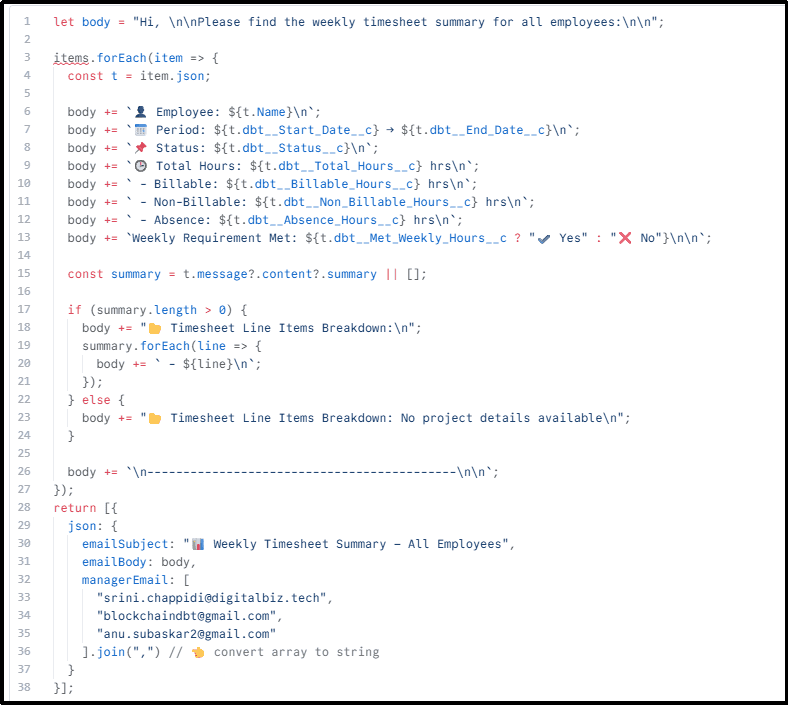
4.8 Prepare Submitted Report Section
This node prepares the final manager-ready Submitted Timesheet Report section by formatting all employee records into a single structured email body. It compiles employee details, weekly hours, compliance status, and AI-generated work summaries into a professional and readable report format.
4.8.1. The node runs in Run Once for All Items mode to combine all employees into one single email output.
4.8.2. The selected language is JavaScript for full control over formatting and structure.
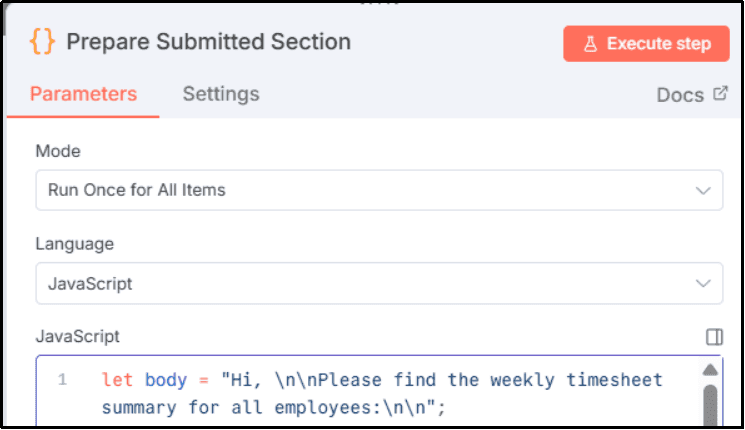
4.8.3. The script initializes an email body with a professional greeting and report heading.
4.8.4. It loops through each merged employee record using items.forEach() to process employees one by one.
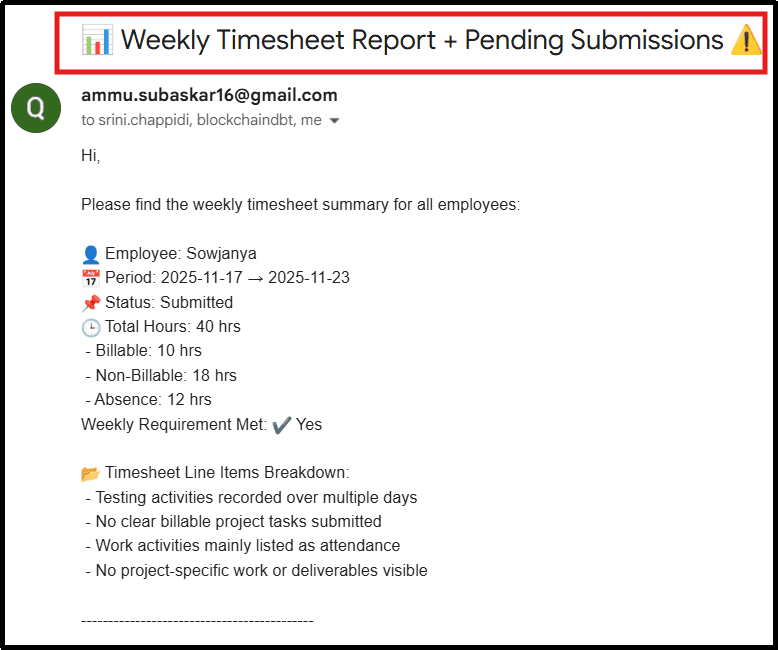
4.8.5. The employee’s name, week period, submission status, and total hours are appended to the report.
4.8.6. The breakdown of Billable, Non-Billable, and Absence hours is clearly formatted under each employee.
4.8.7. The Weekly Requirement Met status is displayed using check and cross indicators for quick compliance review.
4.8.8. The node extracts the AI-generated summary from message.content.summary and appends it as a 4-point activity breakdown.
4.8.9. If no AI summary is available, a fallback message is automatically added to maintain report consistency.
4.8.10. A separator line is inserted between employees to keep the report clean and readable.
4.8.11. The final output is packaged with a professional email subject, the fully formatted email body, and multiple manager email IDs, which are joined into a valid comma-separated string for Gmail delivery.
4.8.12. This output becomes the primary report payload sent to managers in the final email step of the workflow.
5. Processing Path B — Not Submitted Timesheets
This path handles all timesheets that are not yet submitted and prepares a pending submission follow-up list for employees.
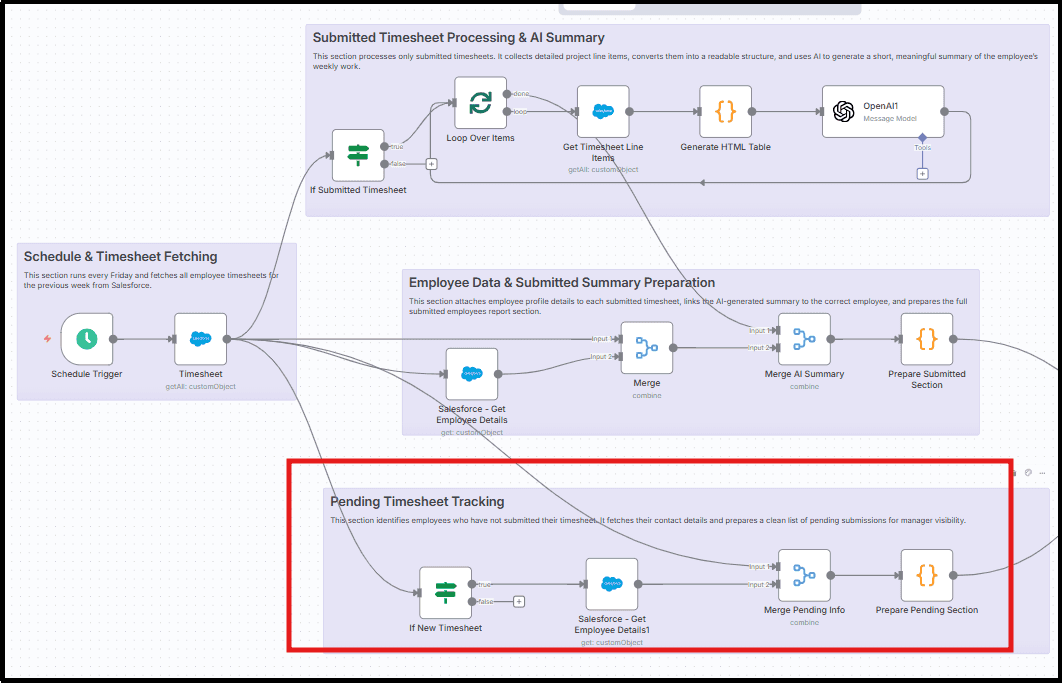
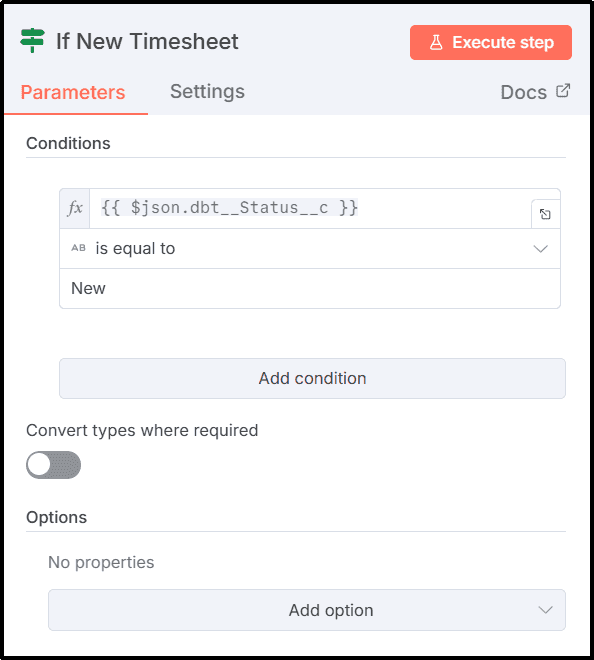
5.1 Filter Non-Submitted Timesheets
This node filters and routes only those timesheet records that are still in New status and not yet submitted. It ensures only pending employees are included for reminders.
5.1.1. This node checks the dbt__Status__c field from each timesheet record.
5.1.2. The condition applied is “is equal to”.
5.1.3. The value is set to New to identify unsubmitted timesheets.
5.1.4. Only records that match the New status are passed to the next step.
5.1.5. All submitted or approved timesheets are automatically excluded from this path.
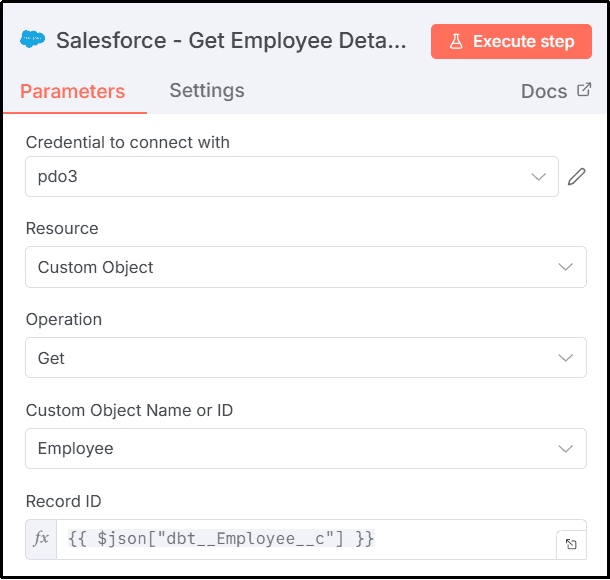
5.2 Fetch Employee Contact Information
This node retrieves the full contact details of employees who have not submitted their weekly timesheets.
5.2.1. This node connects to Salesforce using the pdo3 credential.
5.2.2. The selected resource type is Custom Object.
5.2.3. The operation used is Get, which retrieves a single employee record.
5.2.4. The Custom Object Name or ID is set to Employee.
5.2.5. The Record ID is dynamically mapped using {{ $json["dbt__Employee__c"] }}.
5.2.6. This ensures the correct employee details are fetched for each pending timesheet.
5.2.7. The retrieved data includes the employee’s name, email ID, and employee ID.
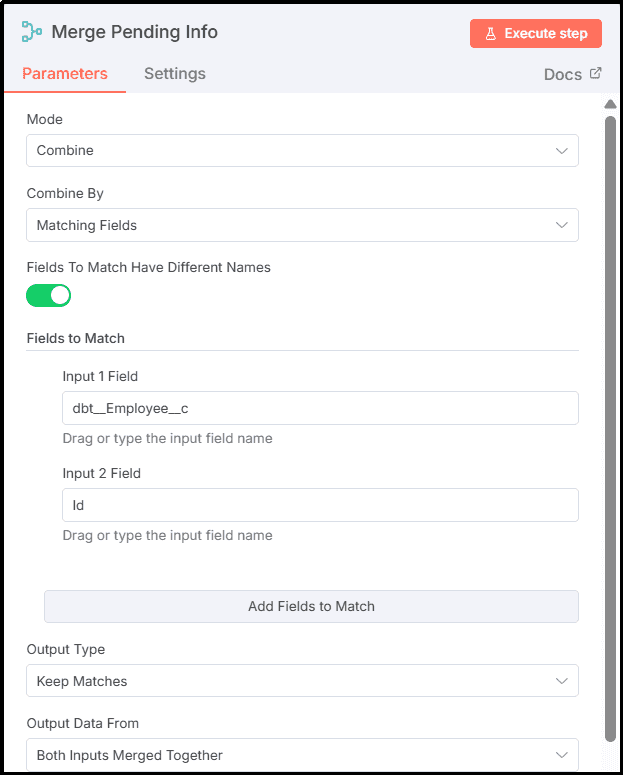
5.3 Merge Pending Timesheet + Employee Details
This node merges the pending timesheet record with the corresponding employee contact details into a single data object.
5.3.1. The merge mode is set to Combine.
5.3.2. The combine method used is Matching Fields.
5.3.3. Since the field names differ, Fields To Match Have Different Names is enabled.
5.3.4. Input 1 Field is set to dbt__Employee__c from the timesheet record.
5.3.5. Input 2 Field is set to Id from the Employee object.
5.3.6. The Output Type is set to Keep Matches.
5.3.7. The Output Data From option is set to Both Inputs Merged Together.
5.3.8. This ensures each record contains both timesheet and employee contact details.
5.4 Generate Pending Submission List
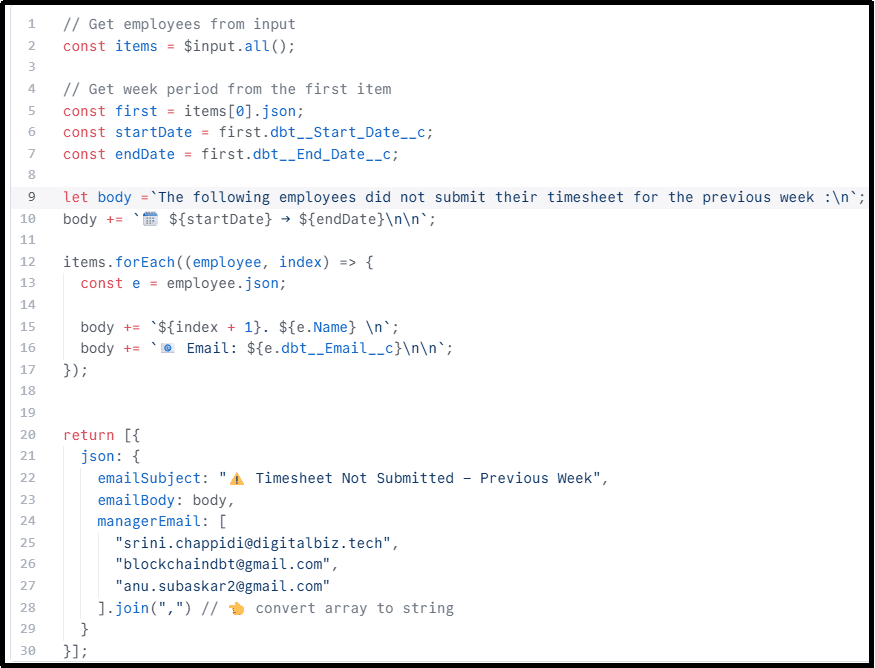
This node prepares the final manager-ready list of employees who did not submit their timesheets.
5.4.1. This node runs in Run Once for All Items mode to process all employees together.
5.4.2. The script is written in JavaScript.
5.4.3. It collects all pending employee records from the input.
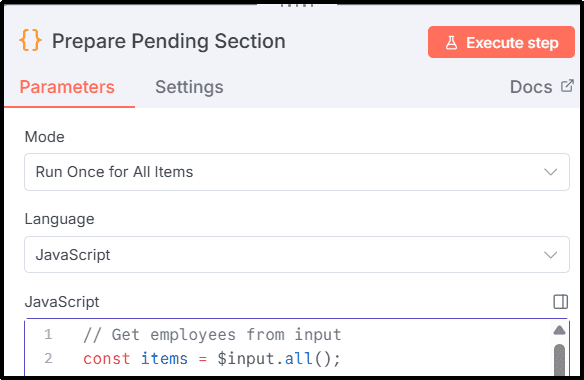
5.4.4. The week start date and end date are taken from the first record.
5.4.5. A formatted email body is generated with the weekly date range.
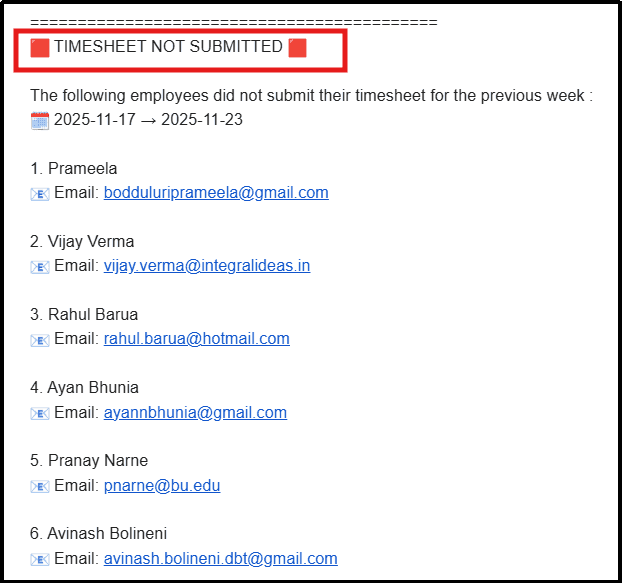
5.4.6. Each employee’s name and email ID are appended into a numbered list.
5.4.7. The email subject is set to “Timesheet Not Submitted – Previous Week”.
5.4.8. Multiple manager email addresses are combined into a single comma-separated string.
5.4.9. The final output is structured for direct use in email notifications to managers.
6. Final Assembly & Report Delivery
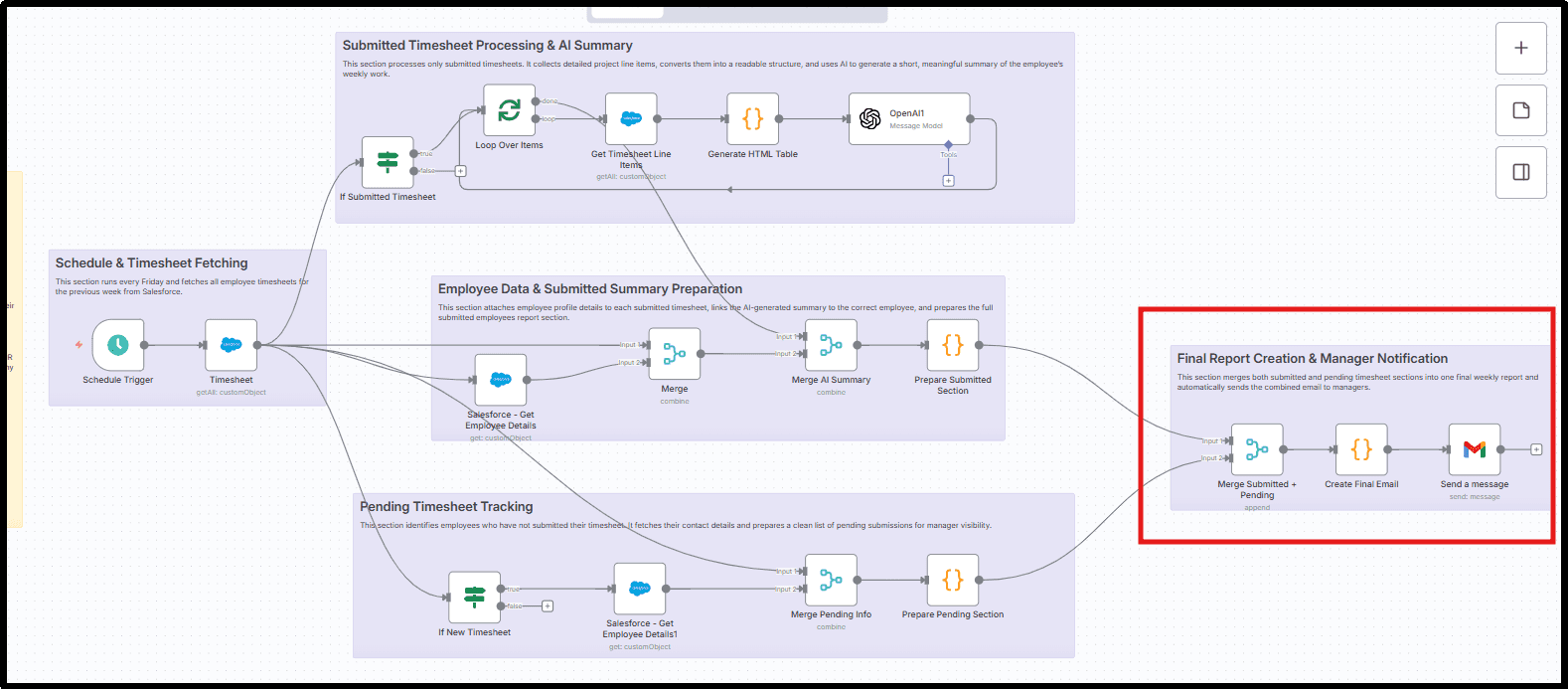
This stage combines both submitted and non-submitted timesheet reports and sends a single final consolidated email to managers.
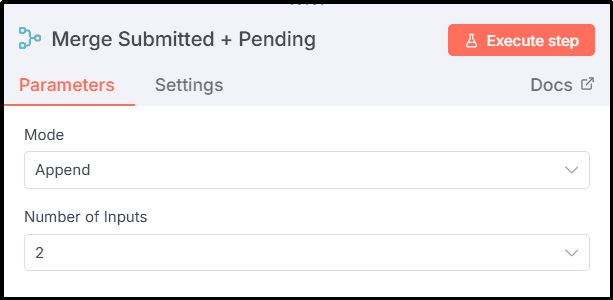
6.1 Append Submitted and Not-Submitted Reports
This node combines the outputs from the submitted report section and the pending submission section into one stream.
6.1.1. The node runs in Append mode.
6.1.2. The Number of Inputs is set to 2.
6.1.3. One input contains the submitted employee weekly summary.
6.1.4. The second input contains the not-submitted employee list.
6.1.5. This ensures both reports move forward together for final assembly.
6.2 Combine Submitted and Pending Reports
This node merges both reports into a single formatted email body for the manager.
6.2.1. This node runs in Run Once for All Items mode.
6.2.2. The scripting language used is JavaScript.
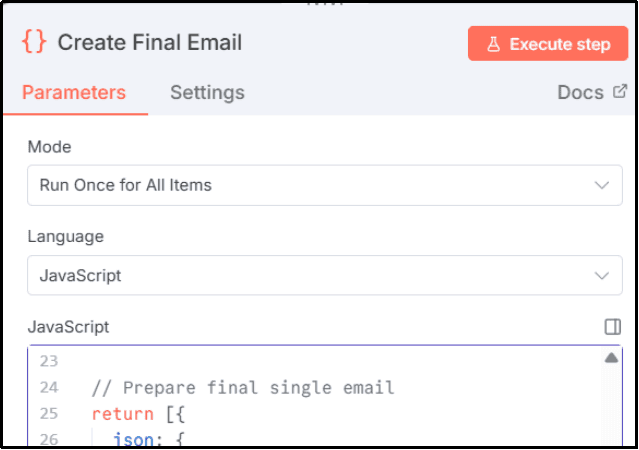
6.2.3. It separates the submitted timesheet summary and the not-submitted list based on the email subject content.
6.2.4. The submitted employee report is added first to the final email body.
6.2.5. A clear visual separator is added using heading lines.
6.2.6. The Timesheet Not Submitted section is appended after the separator.
6.2.7. A final combined email subject is created as “Weekly Timesheet Report + Pending Submissions”.
6.2.8. The manager email addresses are merged into a single comma-separated string.
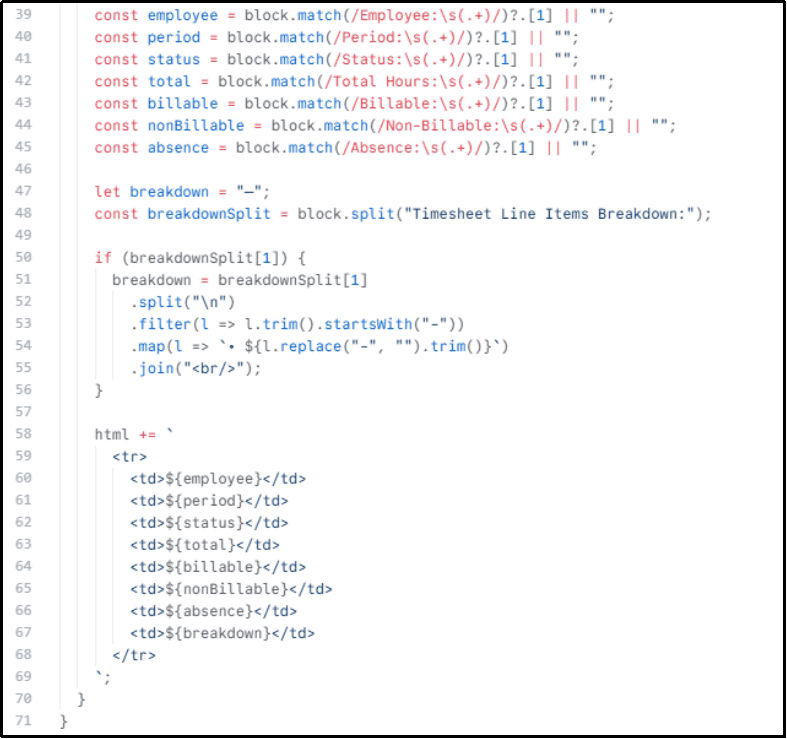
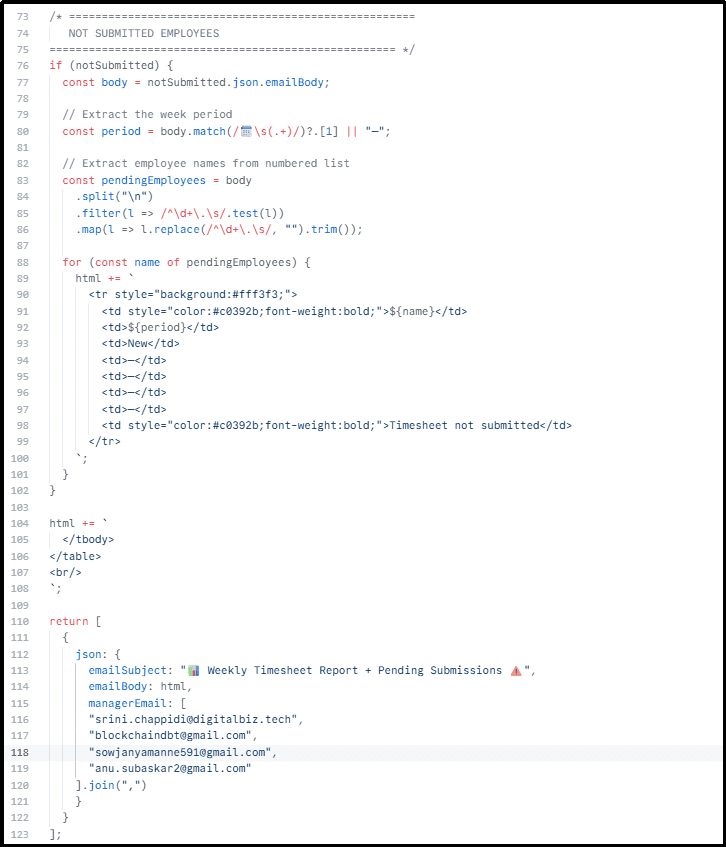
6.2.9. The final output is organized into emailSubject, emailBody, and managerEmail fields, presenting each employee’s timesheet as a clear and detailed summary with key observations and a dedicated “Not Submitted” section, making it easy for managers to review individual performance and compliance step by step.
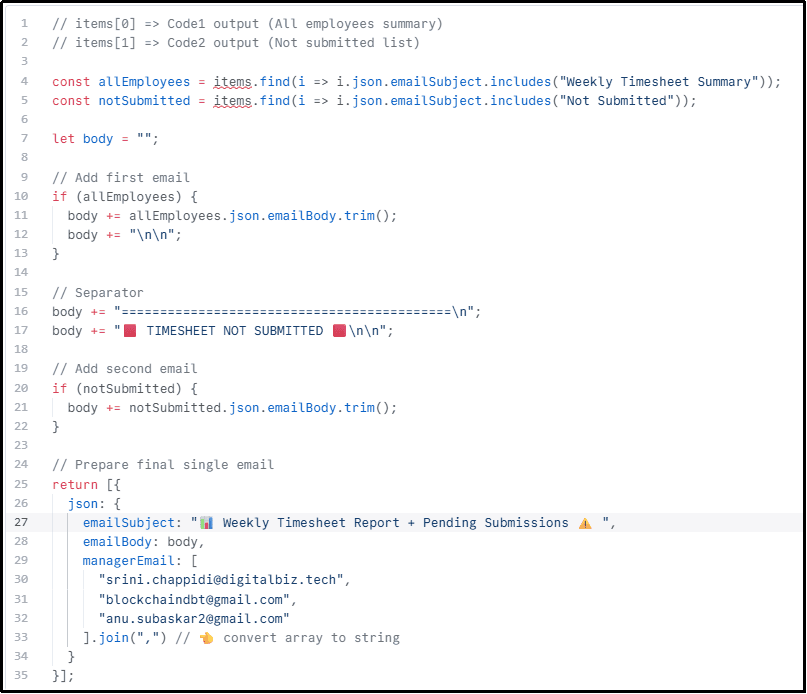
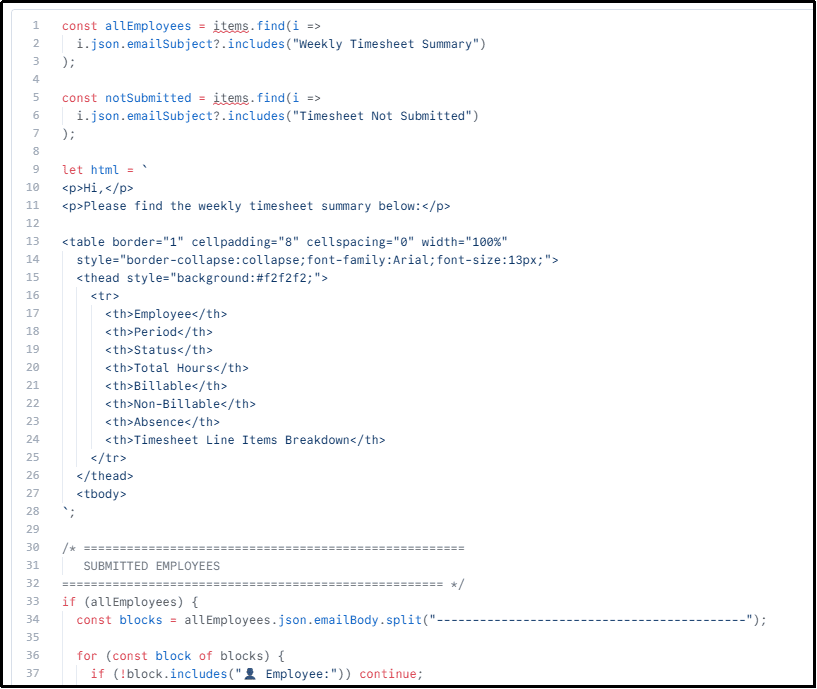
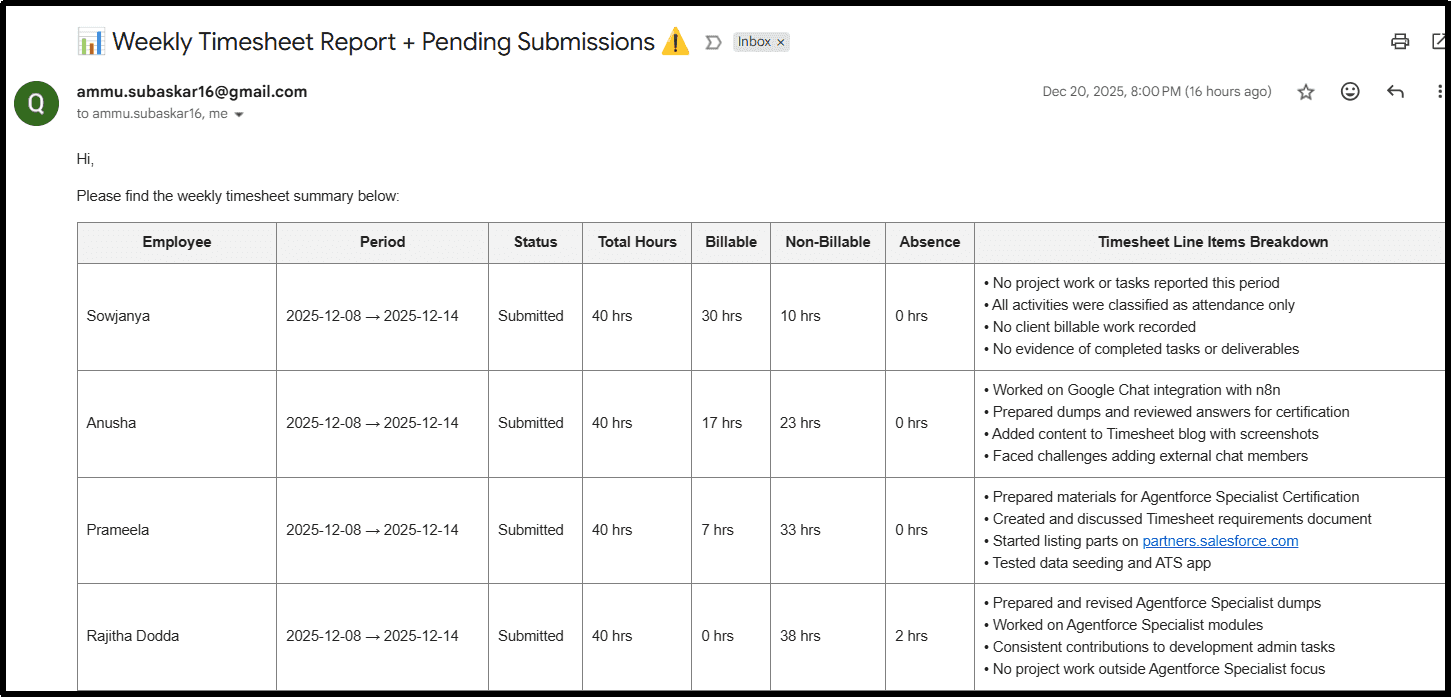
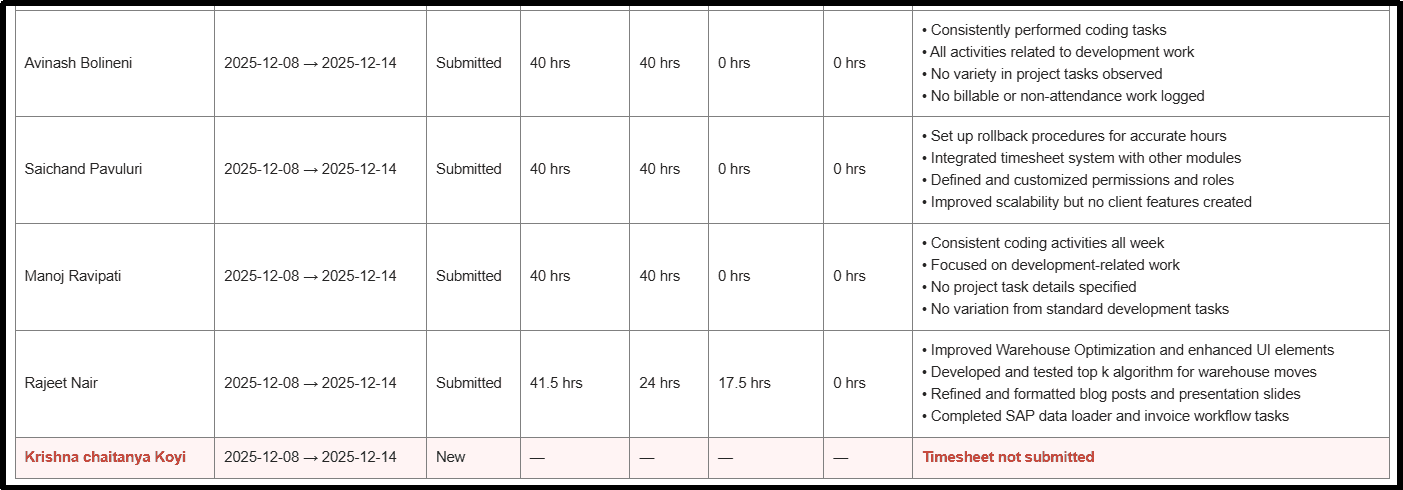
6.2.10. The final output can also be structured into emailSubject, emailBody, and managerEmail fields, presenting all employees in a single spreadsheet-style table that allows quick comparison of hours, activities, and status, with non-submitted timesheets clearly highlighted in red—making it ideal for high-level review and trend analysis.
6.3 Send Final Consolidated Report to Managers via Gmail
This node sends the final combined weekly report to all managers automatically.
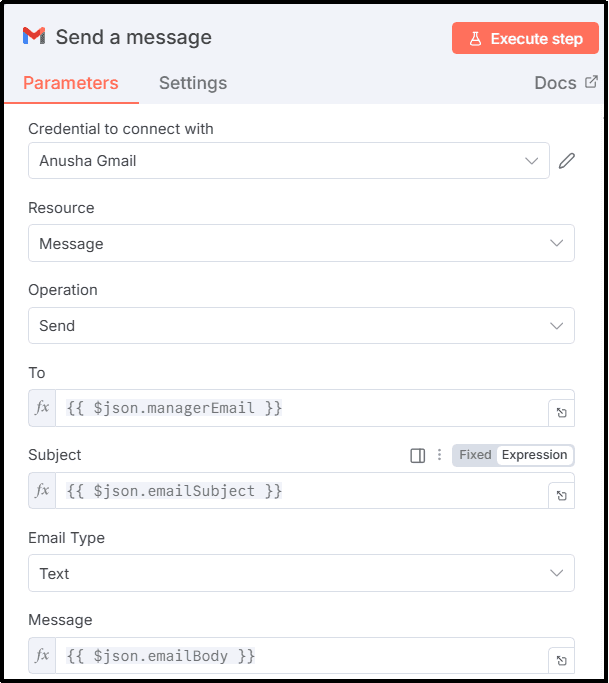
6.3.1. This node connects to Gmail using the Gmail credential.
6.3.2. The selected Resource is Message.
6.3.3. The selected Operation is Send.
6.3.4. The To field dynamically uses {{ $json.managerEmail }}.
6.3.5. The Subject is dynamically mapped from {{ $json.emailSubject }}.
6.3.6. The Email Type is set to Text.
6.3.7. The Message Body is dynamically populated from {{ $json.emailBody }}.
6.3.8. This ensures the full weekly report and pending submission list are delivered automatically to managers every week.
7. Setup Checklist and Test the Workflow
7.1 This checklist ensures all required systems are securely connected and configured before activating the weekly automation. Completing these steps guarantees smooth data flow from Salesforce to AI and email delivery to managers.
- Install the DBT Timesheet App from Salesforce AppExchange and enable weekly timesheet tracking.
- Configure Salesforce OAuth in n8n to allow secure access to timesheet and employee data.
- Configure Gmail OAuth to enable automated email report delivery.
- Set the OpenAI model for generating AI-powered weekly summaries.
- Update the manager recipient email list for report distribution.
- Activate the weekly schedule to run the automation every week.
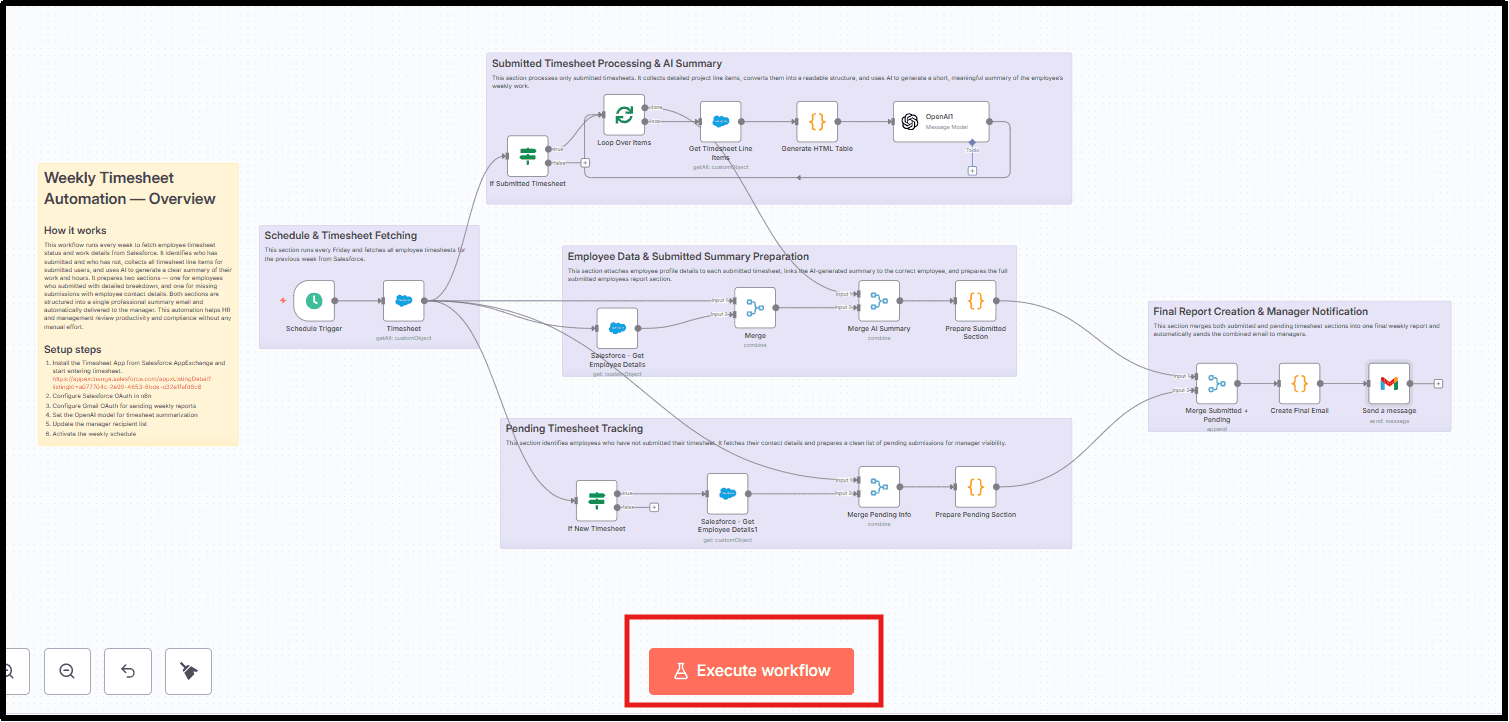
7.2 Click the Execute Workflow button to test the automation and verify its functionality manually.
7.3. The Weekly Timesheet Report + Pending Submissions will be automatically delivered to all configured managers for review in Section-wise format.
7.4. The Weekly Timesheet Report + Pending Submissions can be automatically delivered to all configured managers for review in Tabular format too.
Conclusion
This Weekly Timesheet Report + Pending Submissions Automation delivers a complete, intelligent, and fully automated reporting solution for modern organizations. By integrating Salesforce, OpenAI, Gmail, and n8n, it enables faster decision-making, cleaner productivity insights, zero manual reporting effort, and reliable compliance tracking. Every week, leadership receives a perfectly structured, AI-enhanced summary of work progress along with clear visibility into submission status.
The workflow eliminates manual timesheet verification, prevents missed or delayed submissions, and standardizes weekly reporting across the organization. It improves visibility into employee productivity, strengthens billable and compliance tracking, and consistently delivers AI-powered summaries. Most importantly, it saves significant operational effort each week while ensuring accuracy, accountability, and efficiency.
Leave a Comment